
Company Settings
Understanding Company Settings
Summary: Learn how to navigate and configure your organization's settings in growlio to optimize your workspace.
Overview
Company settings control how your organization operates within growlio. These settings affect everyone on your team, from display preferences and branding to billing and integrations. Understanding these settings helps you maintain consistency, enforce policies, and customize growlio to match your business needs.
Prerequisites
- Administrator or Owner role in your organization
- Completed business onboarding
- Access to organization settings
How to Navigate Company Settings
Step 1: Access Organization Settings
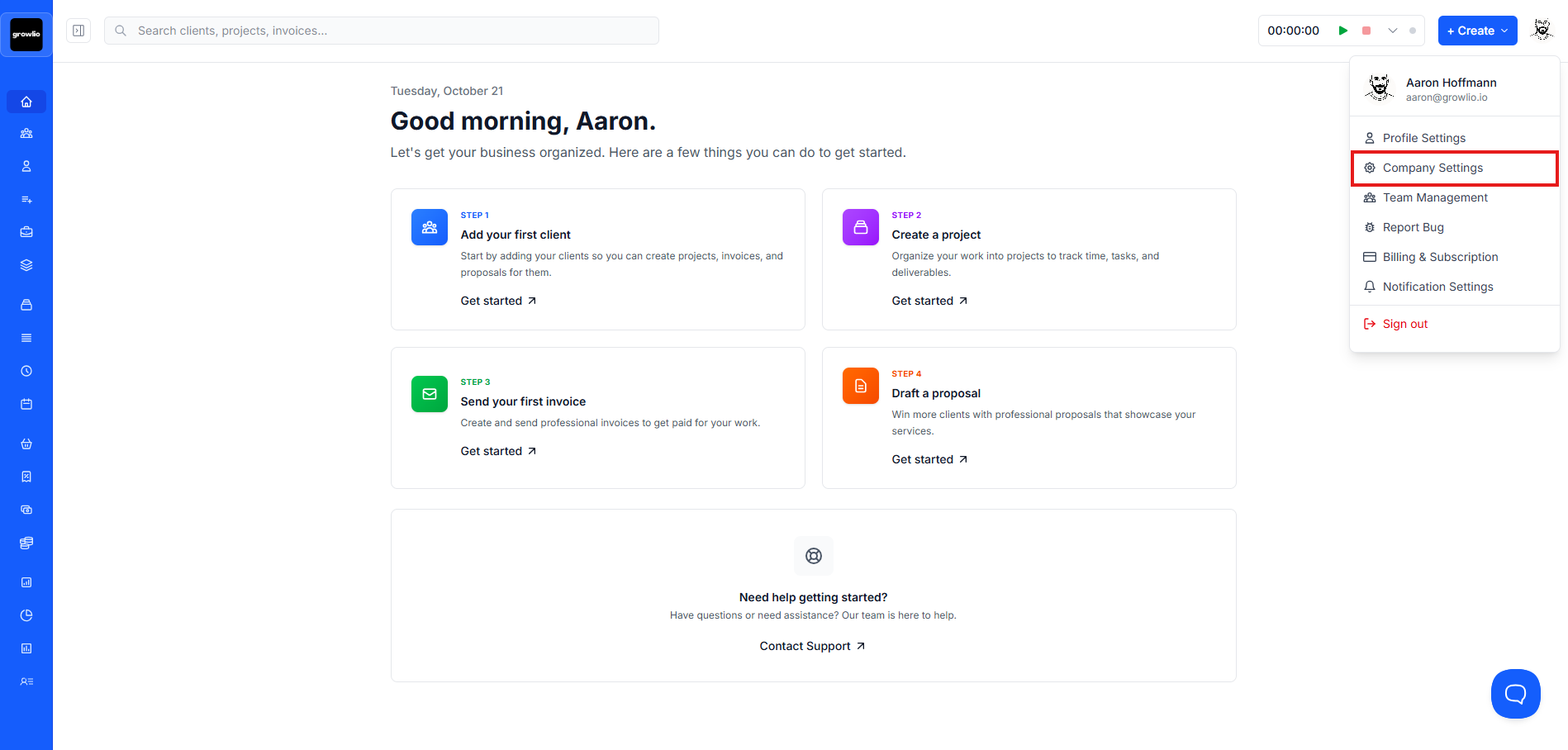
Click on your organization name in the top navigation bar, then select "Settings" from the dropdown menu. This opens the organization settings page where you can manage all company-wide configurations.
Step 2: Review General Settings
The General tab displays your organization's basic information including name, industry, address, and contact details. This is where you can update business information as your company evolves.
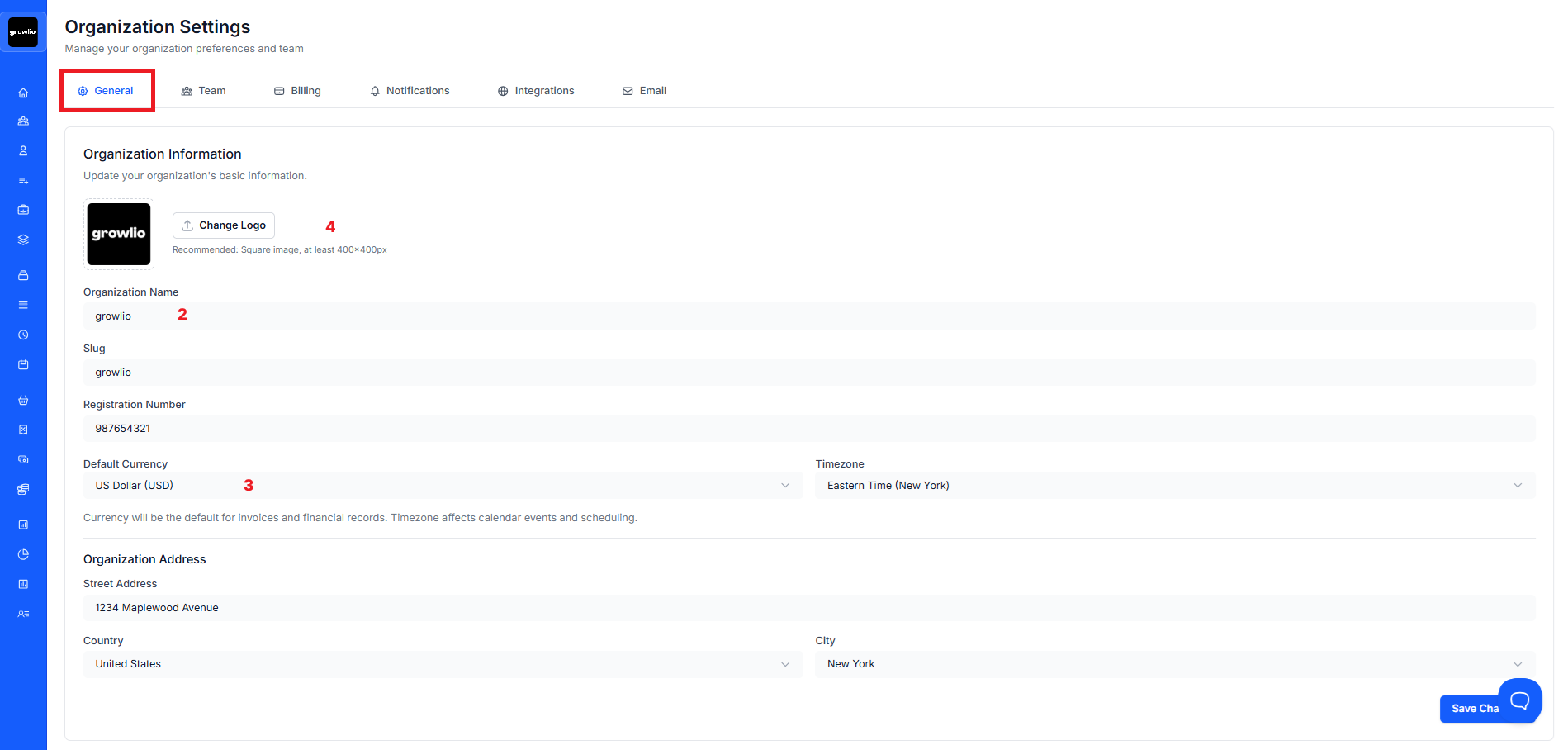
Tip: Keep your business address current as it appears on all invoices, contracts, and proposals sent to clients.
Step 3: Explore Regional Settings
Review timezone and currency settings in the Regional section. These preferences affect how dates, times, and monetary amounts display across your entire organization.
Step 4: Check Branding Options
Navigate to the Branding tab to customize your organization's visual identity. Upload your logo, set brand colors, and configure how your company appears in client-facing documents.
Tip: Upload a high-resolution logo (PNG format recommended) for professional-looking documents and proposals.
Step 5: Review Team Management Settings
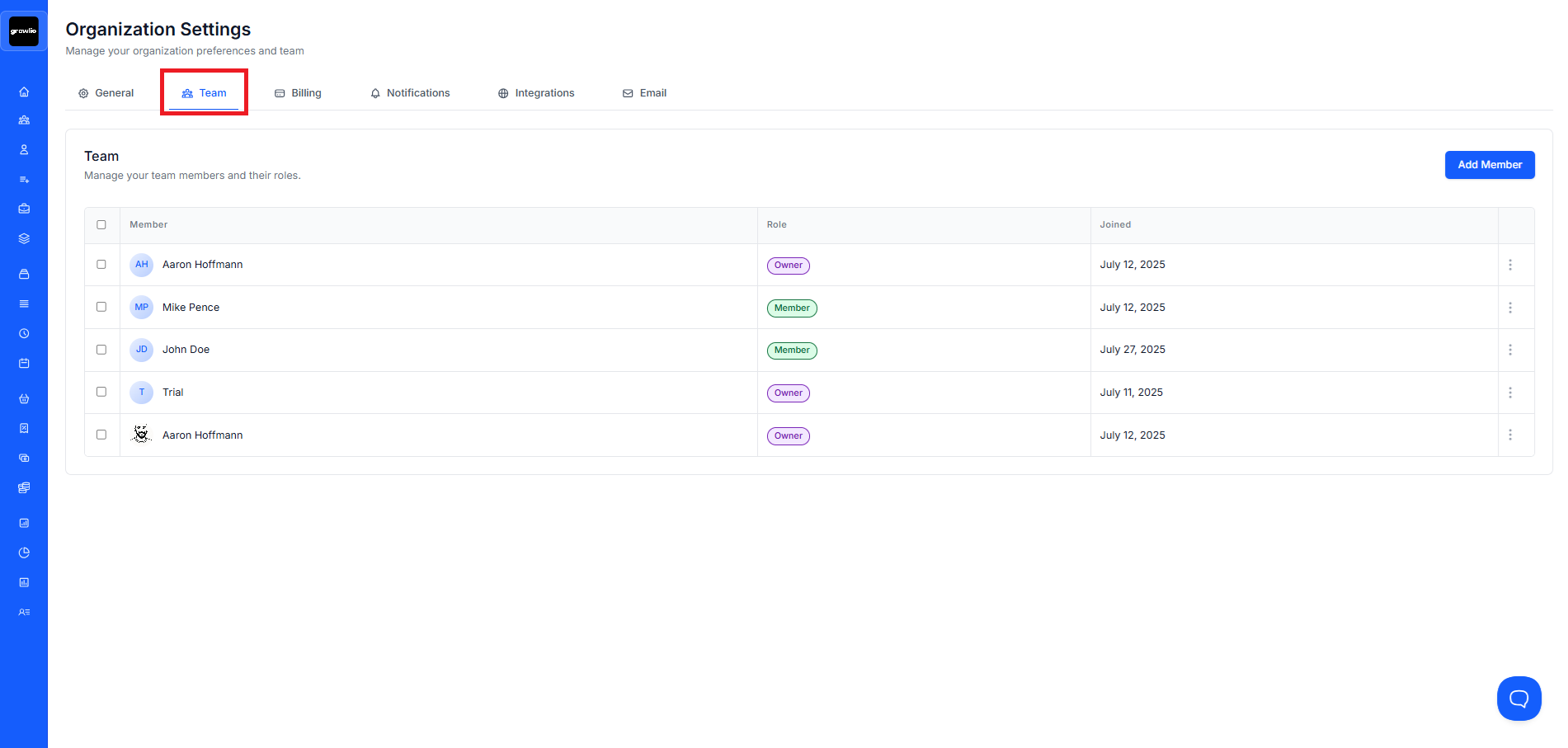
Visit the Team section to view and manage organization members. See who has access, their roles, and when they joined. You can invite new members or modify existing permissions from here.
Step 6: Configure Notification Preferences
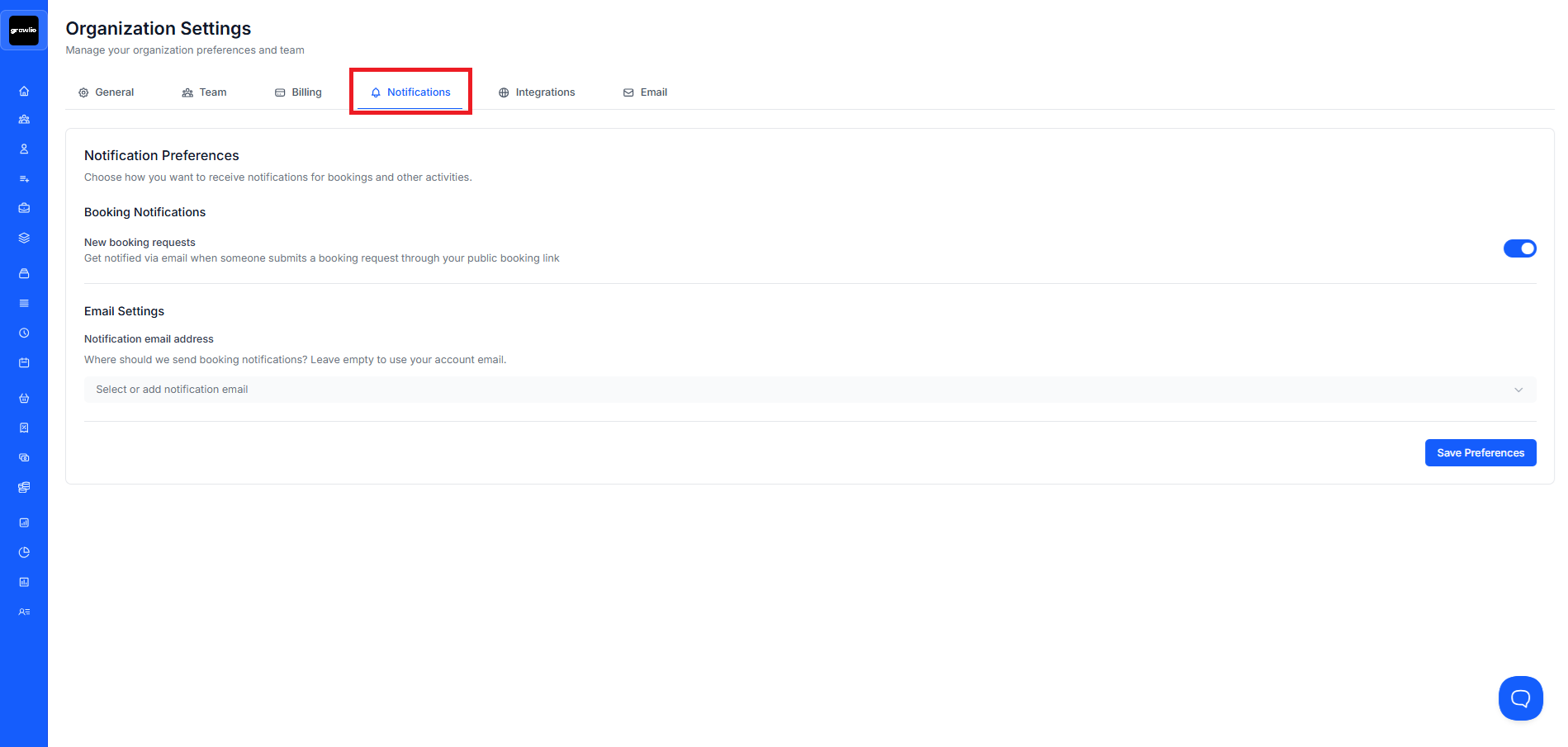
Check the Notifications tab to control what alerts your team receives. Set preferences for email notifications, system alerts, and important updates about client activities.
Step 7: Explore Integration Options
The Integrations tab shows available connections to third-party services. Set up calendar sync, email integration, payment processors, and other tools that enhance your workflow.
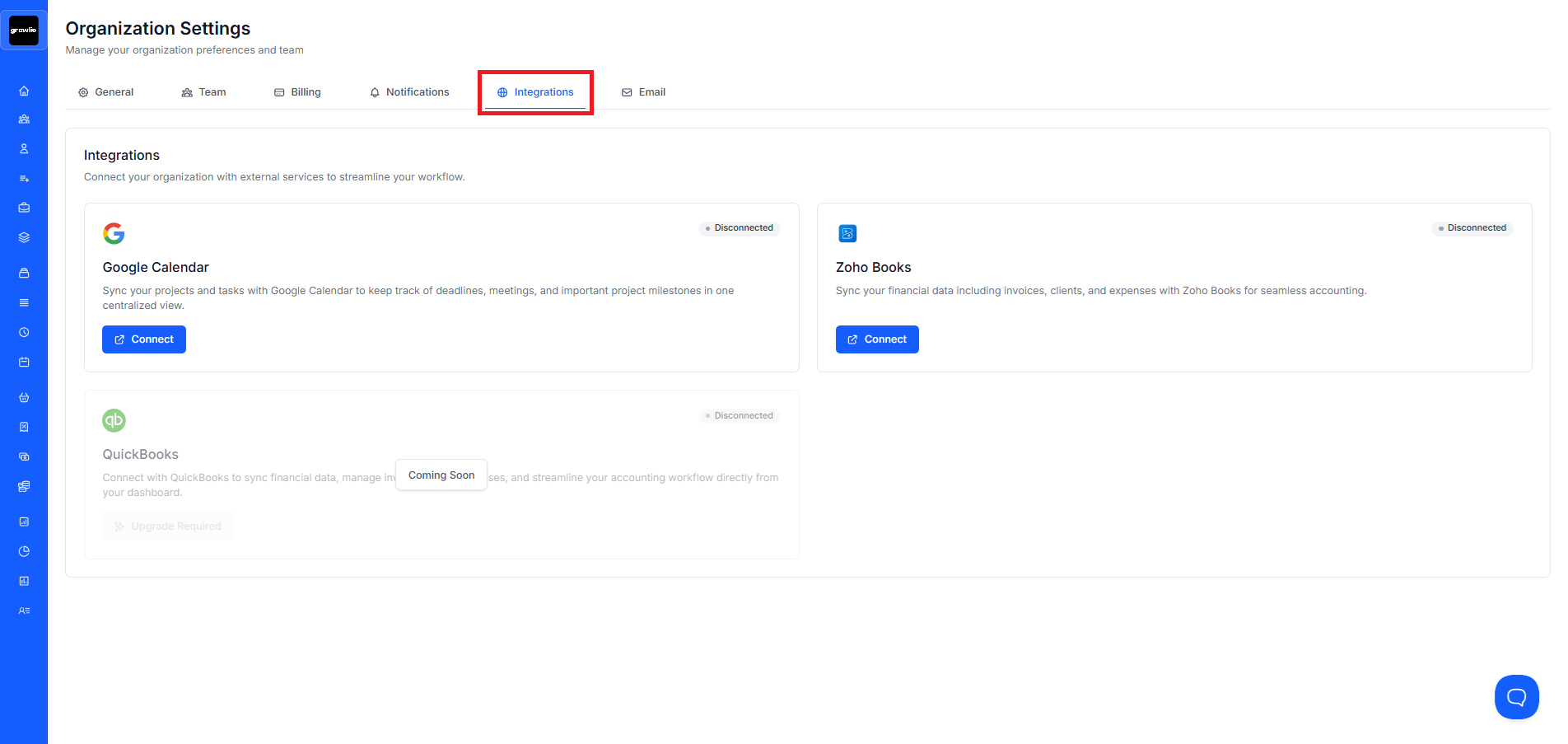
Tip: Start with calendar integration to sync your growlio schedule with Google Calendar or Outlook.
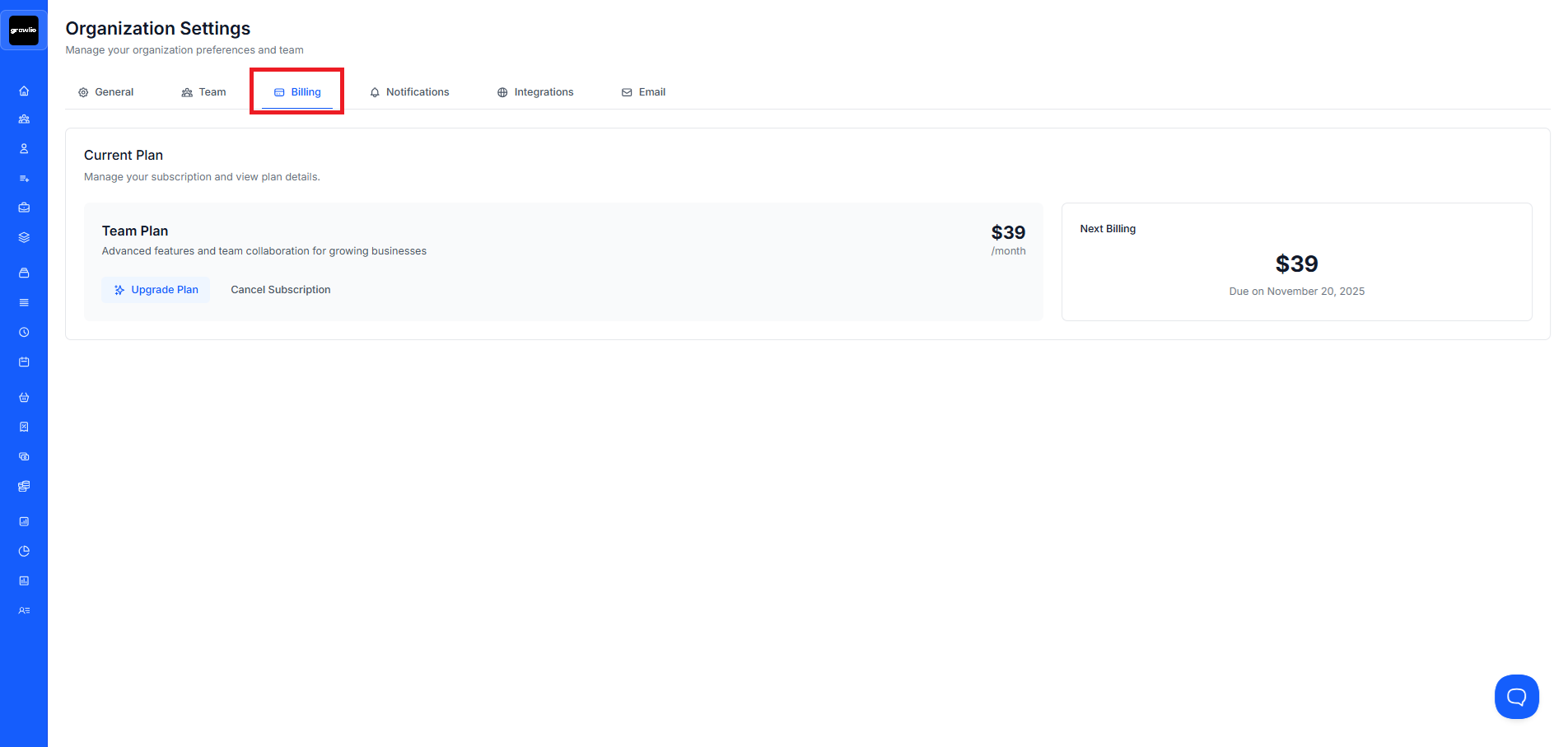
Step 8: Understand Billing Information
Navigate to the Billing section to view your subscription plan, payment method, and usage statistics. This is where you can upgrade your plan or update payment information.
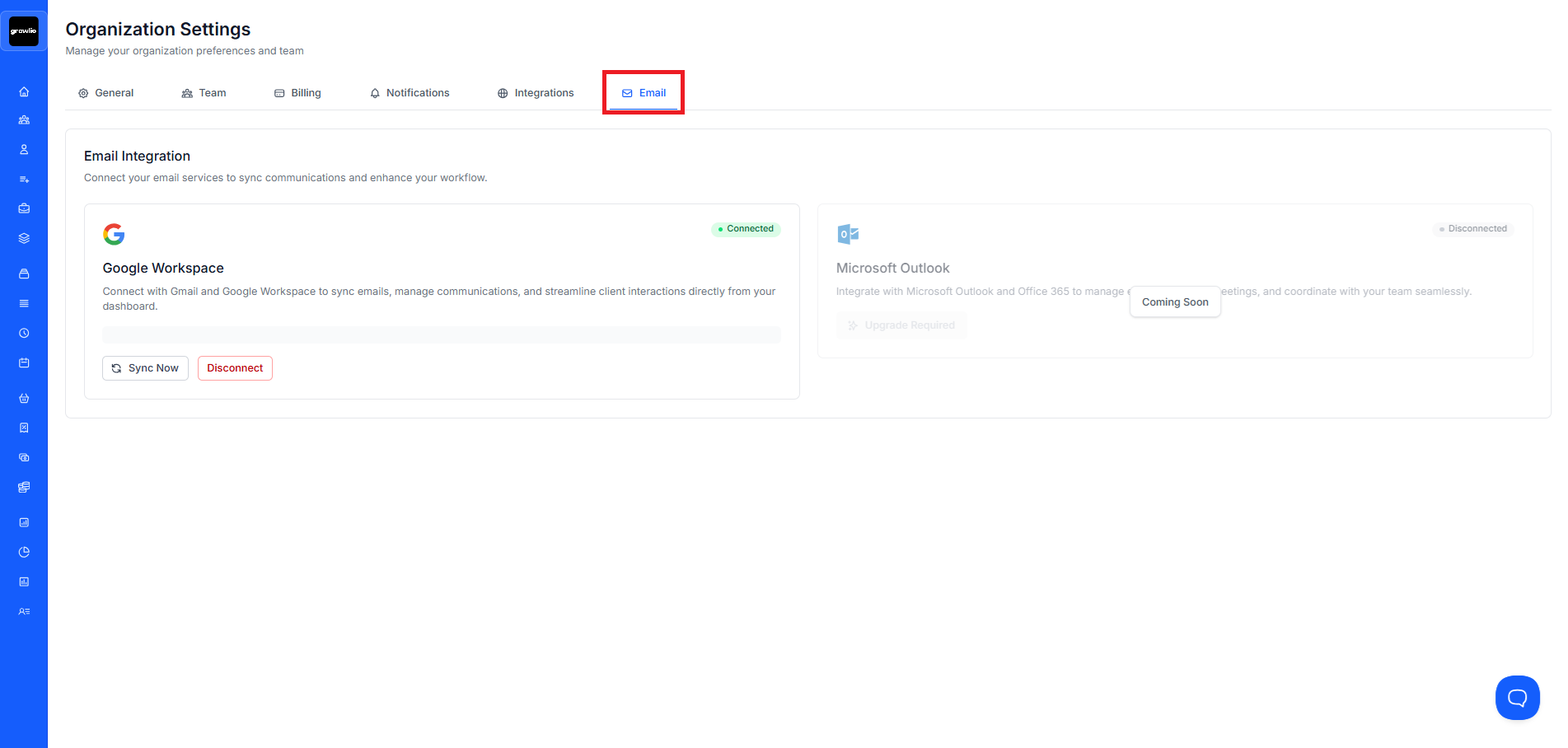
Step 9: Configure Your Email Address
Access the Email Settings section to connect your professional email account. Setting up your email ensures all client communications—such as proposals, contracts, and invoices—are sent directly from your business address, maintaining a consistent and professional brand image.
Tips & Best Practices
- Review organization settings monthly to ensure they align with current business needs
- Restrict settings access to administrators and owners only
- Document any setting changes for team transparency
- Test branding changes on sample documents before finalizing
- Enable two-factor authentication for enhanced security
- Regularly audit team member access and remove inactive users
- Keep payment information current to avoid service interruptions
- Back up critical settings configurations before making major changes
Troubleshooting
Issue: Can't access organization settings
Solution: Only users with Owner or Administrator roles can access organization settings. Contact your organization owner to request elevated permissions or to make specific changes on your behalf.
Issue: Changes aren't applying to existing documents
Solution: Setting changes typically affect new documents only. Existing proposals, contracts, and invoices retain their original settings. Recreate documents if you need them to reflect updated settings.
Issue: Logo appears blurry in generated documents
Solution: Upload a higher resolution logo image. Use PNG format at least 800x800 pixels for best results. Avoid JPG as it may introduce compression artifacts.
Issue: Team members can't see updated settings
Solution: Some settings changes require users to log out and back in. Have team members refresh their browsers or clear cache if changes don't appear immediately.
Issue: Billing information update fails
Solution: Verify all payment details are entered correctly. Check with your bank if the card is authorized for online transactions. Contact growlio support if the issue persists.