
Download Proposals
Downloading Proposal PDFs
Summary: Export your proposals as professional PDF documents for printing, emailing, or archiving offline.
Overview
While growlio's online proposals offer tracking and interactive features, sometimes you need a PDF version - for printing, attaching to emails, sharing with stakeholders, or archiving. growlio generates beautifully formatted PDF versions of any proposal that maintain your branding and styling. This guide shows you how to download and use proposal PDFs effectively.
Prerequisites
- Active growlio account with proposals
- Member-level permissions or higher
- Completed proposal (at least in Sent status)
- PDF reader installed on your device
How to Download Proposal PDFs
Step 1: Navigate to Proposals
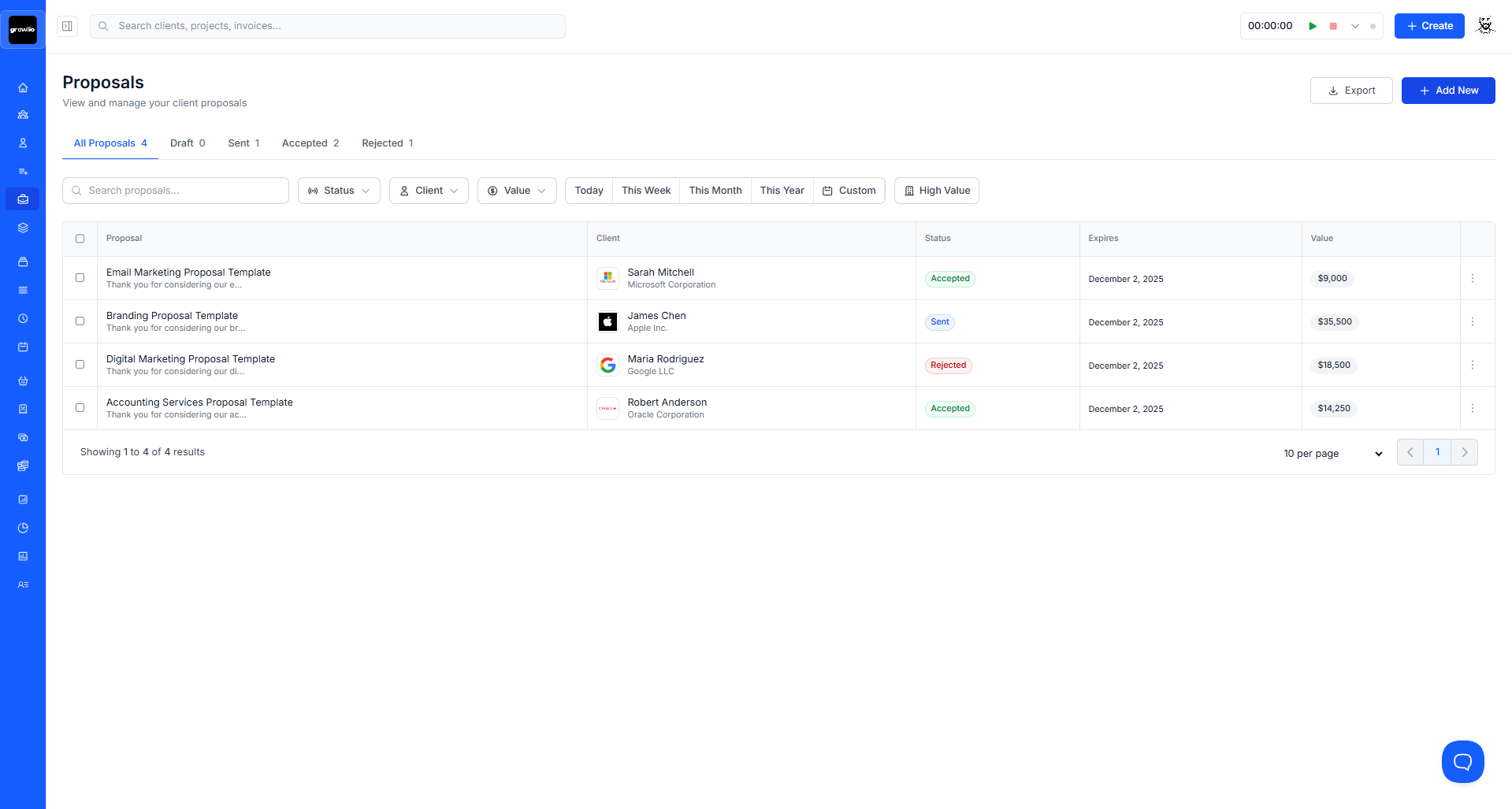
Go to Business > Proposals to access your proposals list. Locate the proposal you want to download as a PDF.
Step 2: Open Proposal Details
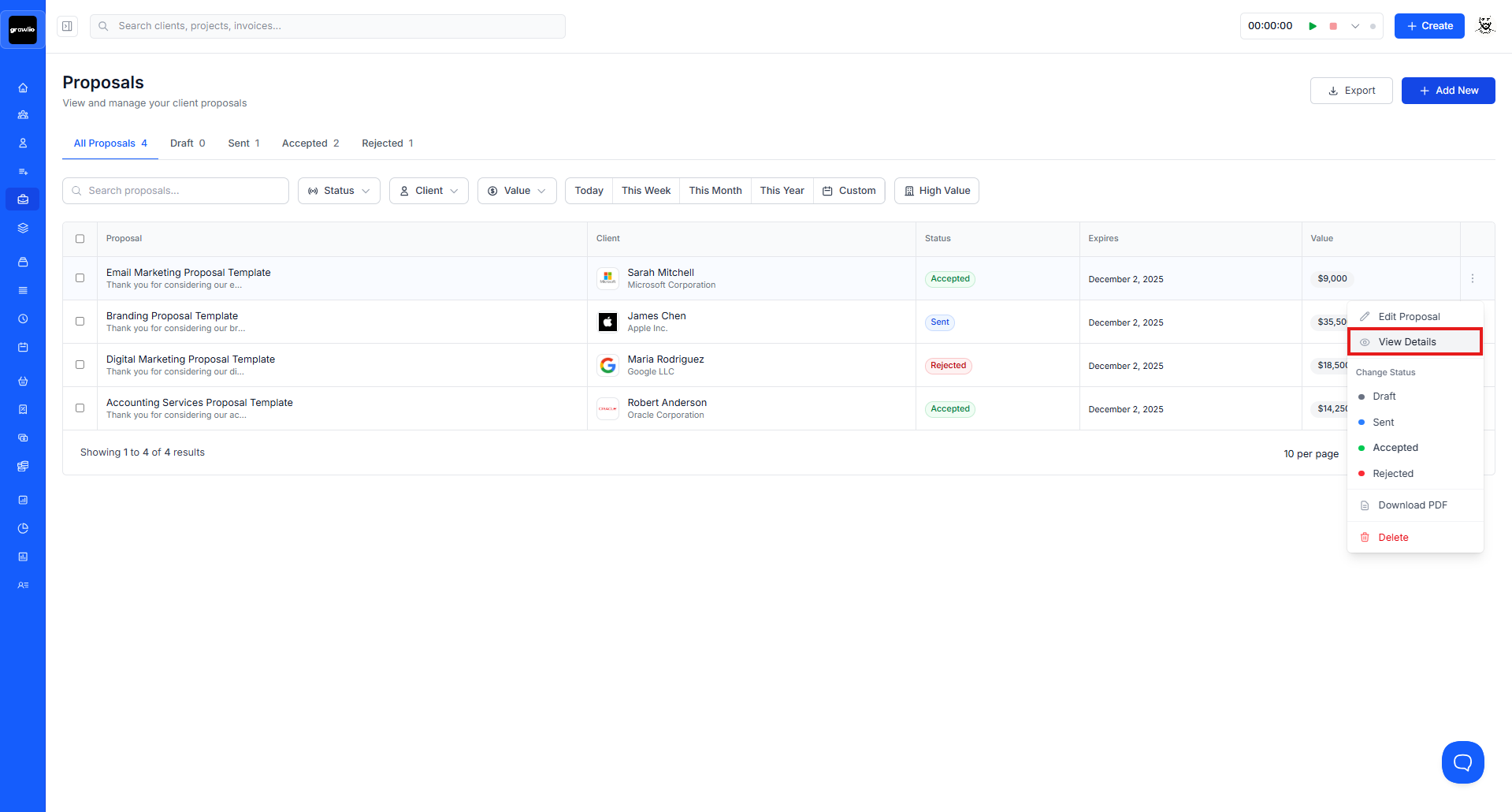
Click on the proposal name to open its full detail view. This displays the complete proposal content and available actions.
Tip: Preview the proposal online first to ensure everything looks correct before downloading the PDF.
Step 3: Locate Download Option
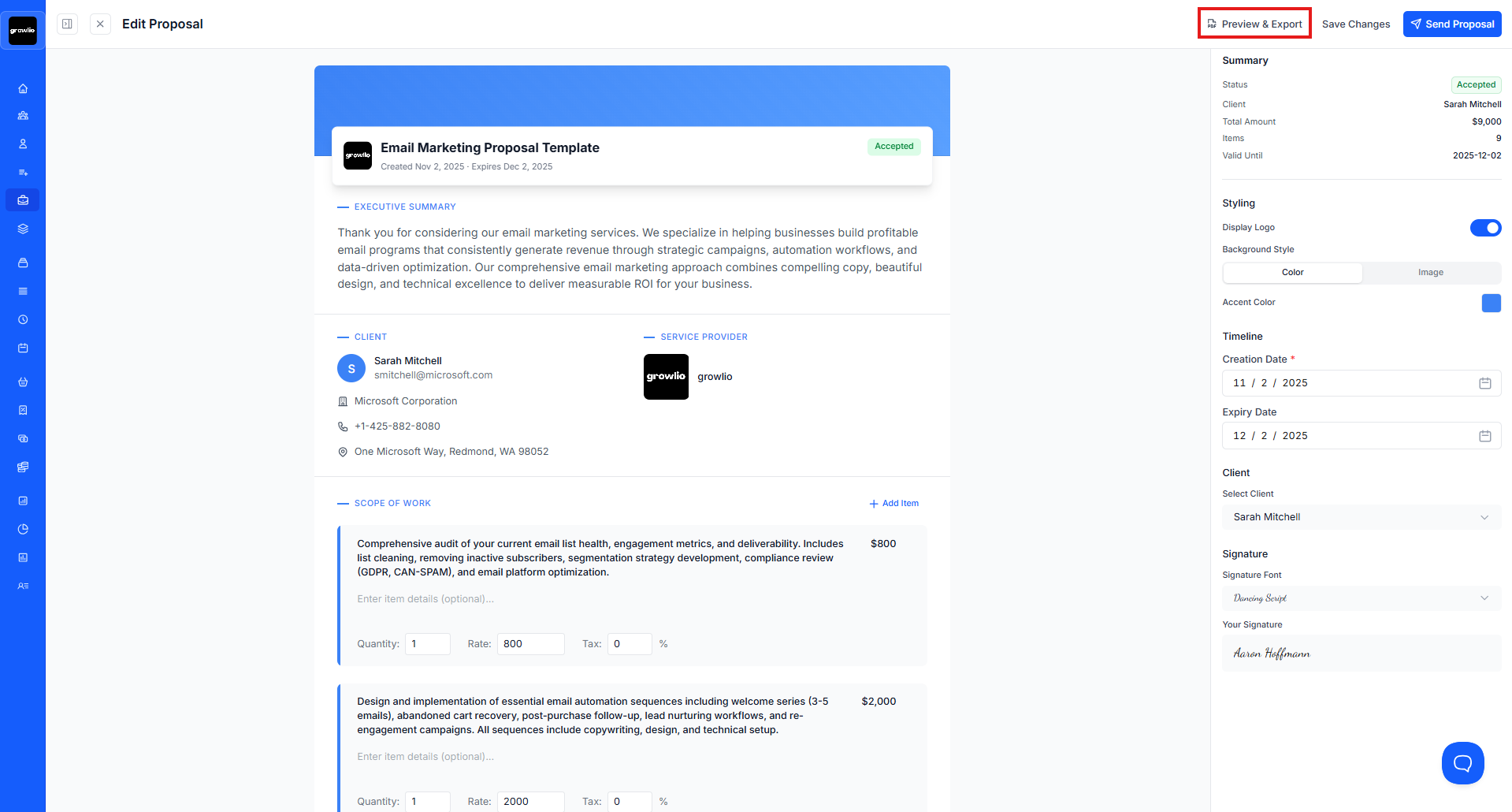
Find the "Preview & Export" button in the proposal actions menu. This is typically in the top-right corner.
Step 4: Click Download PDF
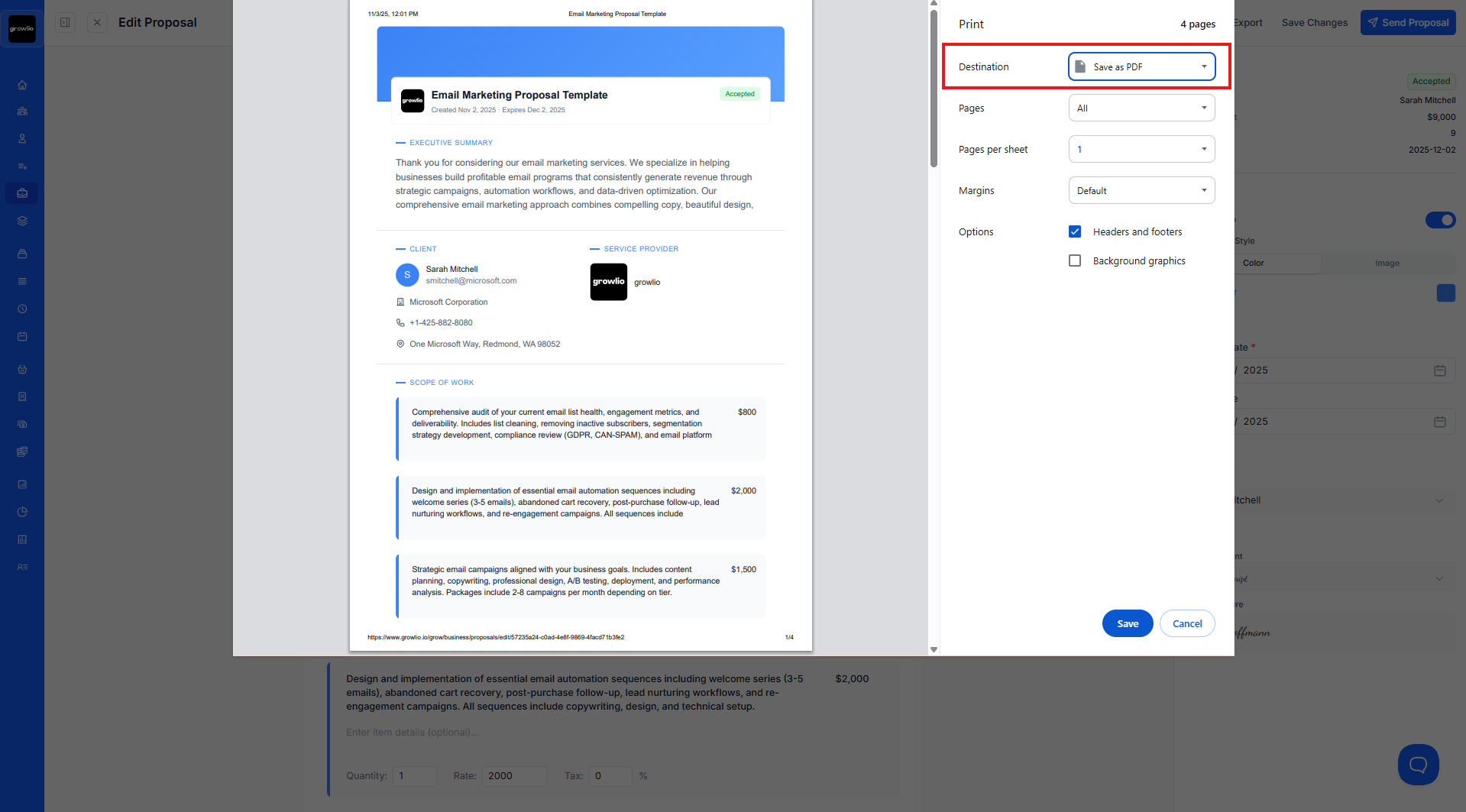
Click the download button to generate the PDF. growlio converts your proposal to PDF format, maintaining all styling, branding, and content formatting.
Tip: PDF generation for long proposals may take 10-15 seconds. Don't close the browser tab while processing.
Step 5: Wait for PDF Generation
A progress indicator shows the PDF is being created. growlio renders each page with proper formatting, images, and styling.

Step 6: Save PDF File
Your browser automatically downloads the PDF file, typically named something like "[Client Name] - Proposal - [Date].pdf" for easy identification.
Step 7: Open and Review PDF
Locate the downloaded PDF in your Downloads folder and open it with your PDF reader. Review to ensure everything rendered correctly.
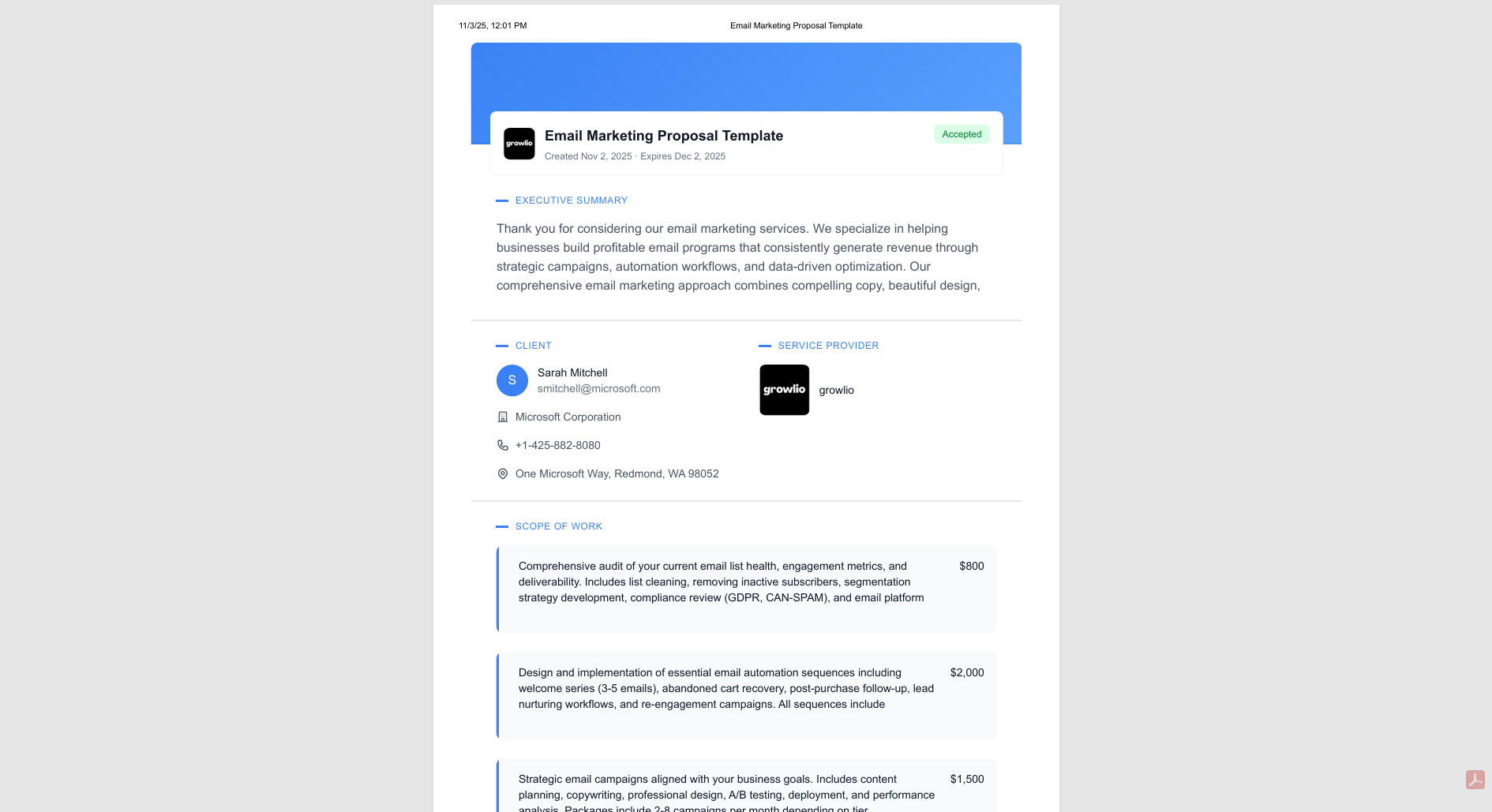
Tip: Check that logos, colors, fonts, and formatting match your expectations. Report any rendering issues to support.
Step 8: Print PDF (Optional)
If you need physical copies, open the PDF and print it using your PDF reader's print function. Adjust print settings for best quality.
Step 9: Attach to Email
Use downloaded PDFs to attach to follow-up emails, especially if clients have difficulty accessing online proposals or prefer traditional attachments.
Step 10: Archive PDFs
Save proposal PDFs to your document management system or cloud storage for long-term archiving and compliance purposes.
Tips & Best Practices
- Download PDFs of all accepted proposals for records
- Keep proposal PDFs organized by client and date
- Review PDF quality before sharing with clients
- Use PDFs for offline presentations or meetings
- Archive PDFs alongside contracts for complete documentation
- Print PDFs for in-person proposal presentations
- Share PDFs with team members who don't have growlio access
- Include PDFs in project folders for easy reference
- Back up important proposal PDFs to cloud storage
- Use PDF watermarks for confidential proposals
- Compress large PDFs before emailing to ensure delivery
- Name PDFs descriptively for easy searching later
Troubleshooting
Issue: Download button is disabled or missing
Solution: Ensure proposal is in Sent, Viewed, Accepted, or Declined status. Draft proposals may not be downloadable. Verify you have Member-level permissions or higher. Refresh the page and try again.
Issue: PDF generation fails or times out
Solution: Very long proposals with many images may timeout. Try removing large images temporarily. Check your internet connection. Contact support if the issue persists.
Issue: PDF formatting looks wrong
Solution: Verify the online proposal looks correct first. Some styling may not translate perfectly to PDF. Report specific formatting issues to growlio support for fixes in future updates.
Issue: PDF is too large to email
Solution: Compress the PDF using online tools or PDF software. Remove large images from the proposal and regenerate. Share via cloud storage link instead of email attachment.
Issue: Can't open downloaded PDF
Solution: Ensure you have a PDF reader installed (Adobe Acrobat Reader, browser PDF viewer, etc.). Check that the file downloaded completely. Try downloading again if file is corrupt.