
Publish & Share Forms
Publishing and Sharing Forms
Summary: Learn multiple ways to publish and share your lead capture forms to start collecting prospect information across all channels.
Overview
Creating a form is just the beginning - publishing it where prospects can find and complete it is crucial. growlio offers multiple sharing options: embed on your website, share via direct link, post on social media, or include in email campaigns. This guide covers all publishing methods to maximize your lead generation.
Prerequisites
- Completed and styled form
- Website access (for embedding)
- Member-level permissions or higher
- Understanding of where you want to capture leads
How to Publish and Share Forms
Step 1: Finalize Your Form
Before publishing, review your form completely: test all fields, verify styling, check mobile responsiveness, and ensure confirmation messages are set.
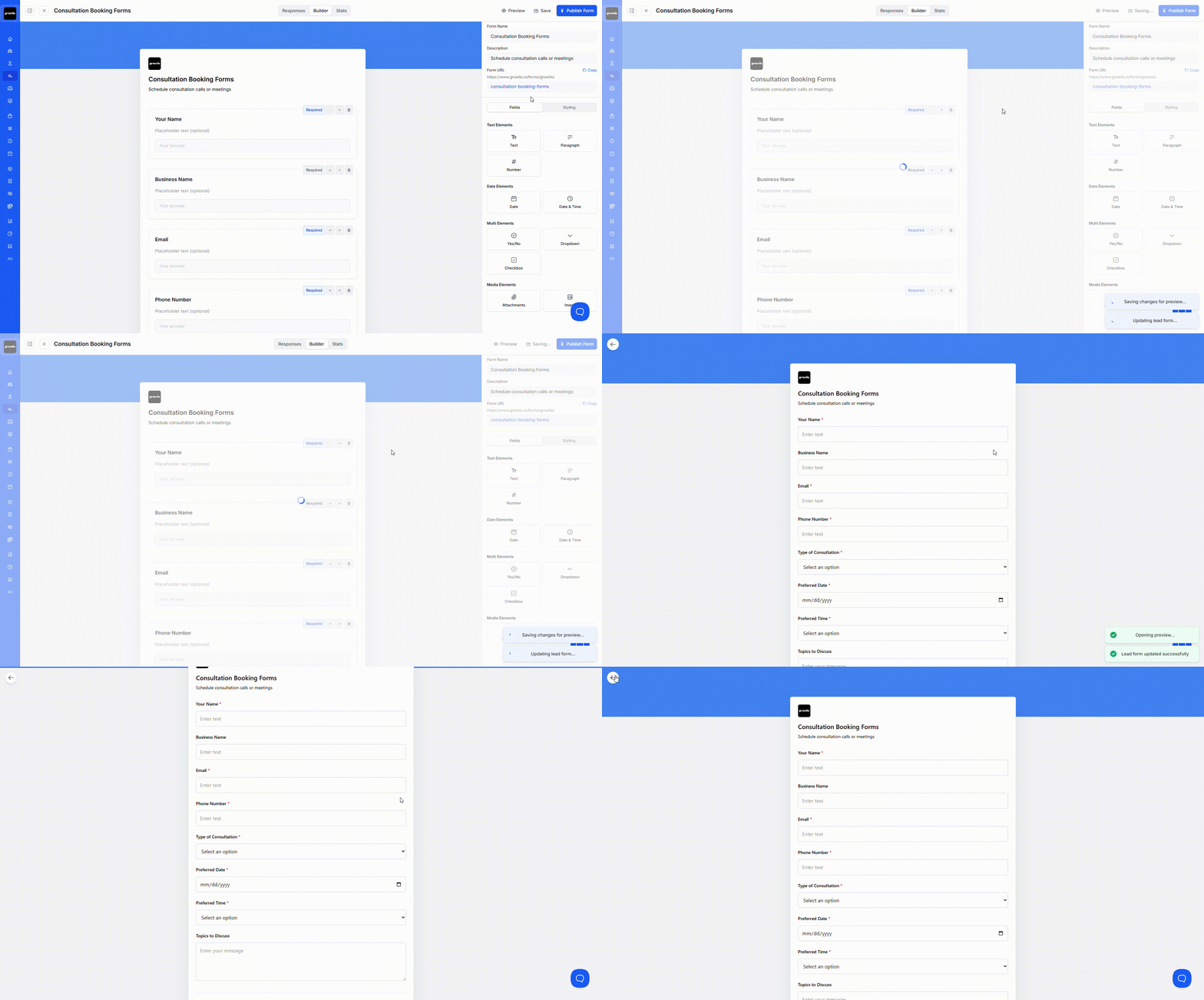
Tip: Fill out your form as a test submission to experience it as prospects will.
Step 2: Access Publishing Options
In the form editor, click "Publish" or navigate to the "Share" tab. This displays all available publishing and sharing methods.

Step 3: Get Embed Code
Copy the embed code provided. This HTML snippet lets you embed the form directly on your website, maintaining full styling and functionality.

Step 4: Embed on Website
Paste the embed code into your website's HTML where you want the form to appear. Most platforms (WordPress, Squarespace, Wix) support HTML embeds.
Tip: Place forms on high-traffic pages: homepage, contact page, blog posts, and service pages.
Step 5: Get Standalone Link
Copy the direct form URL for sharing without embedding. This link opens your form in its own page hosted by growlio.

Step 6: Share on Social Media
Post the standalone link on social media platforms. Customize your post with compelling copy that encourages prospects to fill out the form.
Tip: Use URL shorteners for cleaner social media posts. Track different sources with UTM parameters.
Step 7: Add to Email Campaigns
Insert the form link in email newsletters, campaigns, or signatures. Use call-to-action buttons linking to your form for higher click-through rates.
Step 8: Generate QR Code
Create a QR code linking to your form for use on printed materials: business cards, flyers, event signage, or product packaging.
Tip: Test QR codes before printing to ensure they scan correctly and lead to the right form.
Step 9: Configure Form Settings
Set important form settings: where submissions go, notification recipients, thank you page redirect, and whether to allow multiple submissions.
Step 10: Monitor Form Performance
Track form views, starts, completions, and abandonment rates. Use analytics to optimize form performance over time.

Tips & Best Practices
- Publish forms on high-traffic website pages
- Use compelling CTAs on landing pages with forms
- A/B test different form placements and designs
- Track form performance with UTM parameters
- Promote forms across multiple channels simultaneously
- Update forms based on completion rate data
- Include social proof near forms (testimonials, logos)
- Make forms easy to find with clear navigation
- Optimize page load speed where forms are embedded
- Use pop-ups strategically for exit-intent forms
- Share forms in email signatures for passive lead generation
- Create dedicated landing pages for campaigns
Troubleshooting
Issue: Form not appearing on website
Solution: Verify embed code is pasted correctly in HTML. Check that your website allows iframe embeds. Clear website cache. Ensure no JavaScript errors on the page. Try using standalone link instead.
Issue: Form looks different when embedded
Solution: Website CSS may be conflicting with form styles. Use iframe embed for style isolation. Adjust form dimensions in embed code. Contact support if persistent styling issues occur.
Issue: Form link not working
Solution: Verify form is published (not in draft mode). Check that link was copied completely. Ensure form hasn't been deleted or archived. Try generating a new link.
Issue: Submissions not arriving
Solution: Verify notification settings are configured correctly. Check spam folders for form submission emails. Ensure webhook URLs (if used) are correct. Review form settings for where submissions should go.
Issue: Form loads slowly on mobile
Solution: Optimize images used in form. Remove unnecessary fields that slow loading. Use a Content Delivery Network (CDN) if available. Test mobile connection speeds. Consider lighter form theme.