
Setup Your Profile
Setting Up Your Profile
Summary: Customize your personal profile with your photo, contact information, and preferences to make the most of growlio.
Overview
Your profile is your personal workspace in growlio. Setting it up helps team members recognize you, ensures you receive notifications correctly, and personalizes your experience. This guide walks you through configuring your profile settings, uploading a profile picture, and securing your account.
Prerequisites
- Active growlio account
- Access to profile settings
- Profile photo (optional, PNG or JPG format recommended)
How to Set Up Your Profile
Step 1: Access Profile Settings
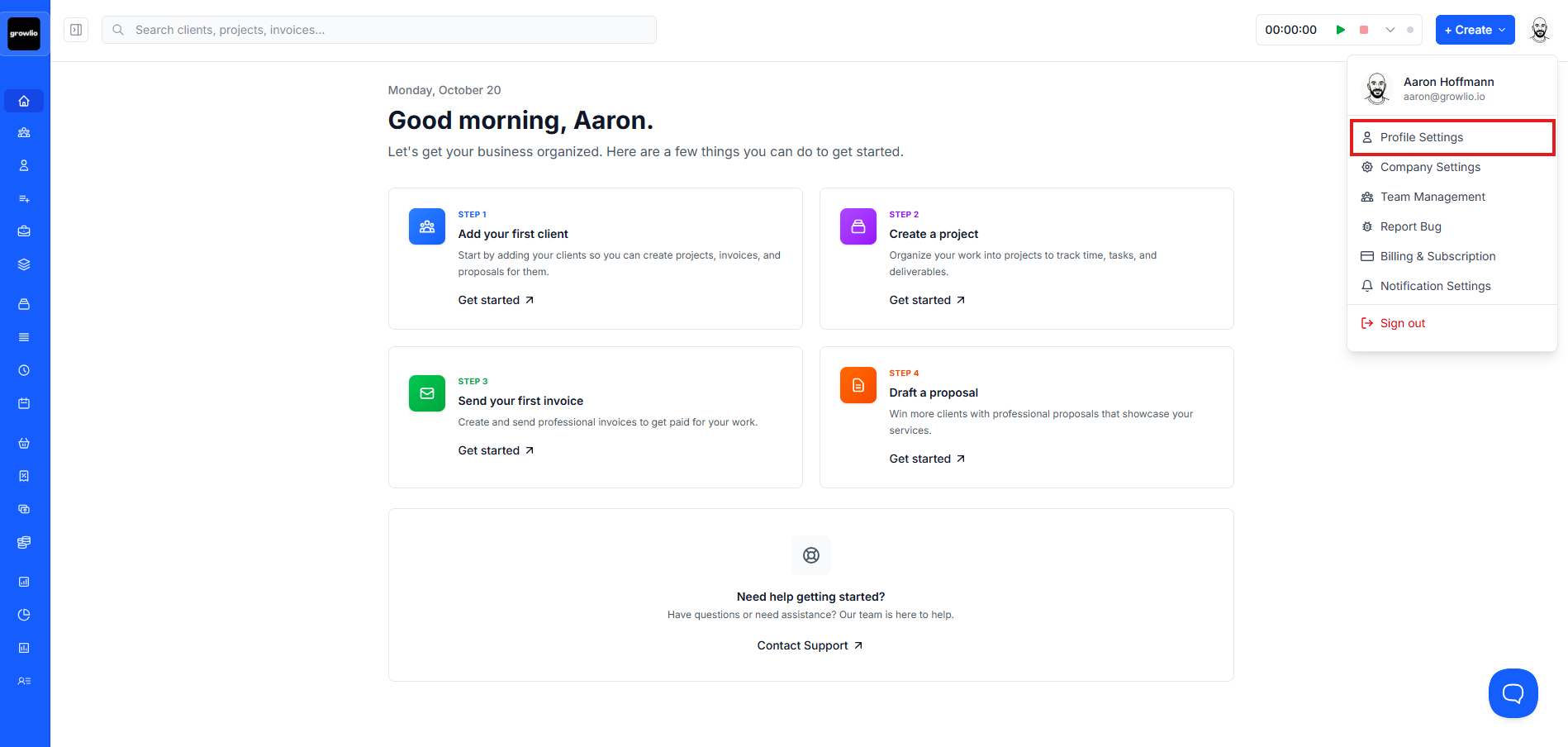
After logging in, click on your avatar or name in the top-right corner of the dashboard. Select "Profile Settings" from the dropdown menu to open your profile configuration page.

Step 2: Upload Your Profile Picture
In the Personal Information section, you'll see a placeholder for your profile picture. Click the "Change Avatar" button to upload an image from your computer. Choose a professional photo that helps team members recognize you.
Tip: Use a square image at least 400x400 pixels for best results. Supported formats include PNG, JPG, and WebP (max 5MB).
Step 3: Update Your Full Name
Enter your complete name in the "Full Name" field. This name will appear throughout growlio when you interact with clients, create proposals, or collaborate with team members.
Step 4: Add Contact Information
Fill in your phone number in the "Phone Number" field. This helps team members reach you directly and can be included in client communications when needed.
Step 5: Set Your Job Title
Enter your professional title in the "Job Title" field. This appears on proposals, contracts, and other documents you create, adding credibility to your communications.
Step 6: Write Your Bio
Add a brief professional bio in the "Bio" text area. Describe your expertise, experience, or role in a few sentences. This helps team members understand your background and areas of specialization.
Tip: Keep your bio concise and professional. Focus on your key skills and how you contribute to your organization.
Step 7: Save Your Changes
After updating your information, click the "Save Changes" button at the bottom of the form. You'll see a confirmation message once your profile has been updated successfully.
Step 8: Navigate to Security Settings
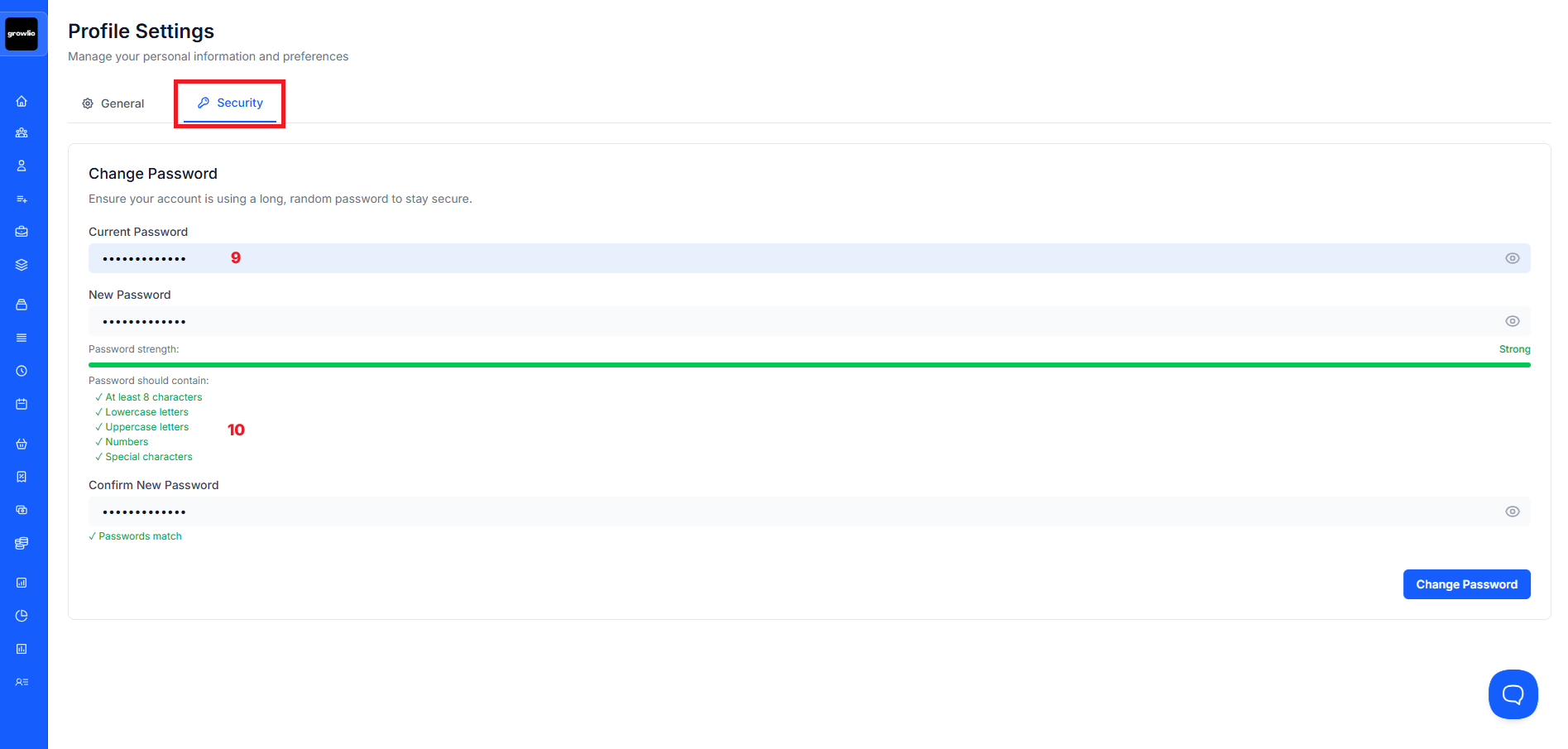
Click the "Security" tab at the top of the page to access password and security settings. This is where you can change your password and manage account security.
Step 9: Update Your Password (Optional)
To change your password, enter your current password, then create a new password and confirm it. growlio will show you a password strength indicator to help you create a secure password.
Tip: Use a strong password with at least 8 characters, including uppercase, lowercase, numbers, and special characters.
Step 10: Review Password Strength
As you type your new password, watch the strength indicator below the field. Aim for "Good" or "Strong" to ensure your account remains secure. The checklist shows which requirements you've met.
Tips & Best Practices
- Update your profile picture regularly to help remote team members recognize you
- Use a professional email signature by including your title and contact information
- Review your profile settings quarterly to ensure information stays current
- Create a strong, unique password and consider using a password manager
- Add detailed bio information to help clients and team members understand your expertise
- Keep your phone number updated for urgent communications
Troubleshooting
Issue: Profile picture won't upload
Solution: Ensure your image is in PNG, JPG, or WebP format and under 5MB. SVG files are not supported for security reasons. Try resizing your image if it's too large.
Issue: Changes aren't saving
Solution: Make sure you click the "Save Changes" button after making edits. Check your internet connection and try refreshing the page if the problem persists.
Issue: Password change fails
Solution: Verify that your current password is entered correctly. Ensure your new password meets all requirements (at least 8 characters) and that both new password fields match exactly.
Issue: Can't see the "Save Changes" button
Solution: The button appears at the bottom of the form. Scroll down to find it, or make a change to your profile first - the button becomes active when changes are detected.
Issue: Avatar appears distorted
Solution: Use a square image (same width and height) for best results. If your photo is rectangular, crop it to a square before uploading.